
NYSC Camp
How to Check and Print NYSC Green Card From Your Phone
Have you completed your NYSC online registration and are now wondering how to print your Green Card? You are not alone. Many Prospective Corps Members (PCMs) get to this stage and start looking for the document on their dashboard, especially when their friends have already printed theirs.
The good news is that you don’t need to register all over again just to print your Green Card. Once your registration has been completed and the document is available on your NYSC dashboard, you can log in, download it and print it.
But before you rush to a cyber cafe, let me walk you through the process. I will also explain how to print your Green Card, what to do when it is not showing on your dashboard, and the difference between the Green Card and NYSC call-up letter.
What Is the NYSC Green Card?
The NYSC Green Card is a registration slip generated from your NYSC online registration profile. It contains important information about you and your registration, including your personal details, academic information, passport photograph and other registration details.
Despite the name, the Green Card is not necessarily printed on green paper. It is commonly called the Green Card because of the document’s name.
You will need to keep it with your other NYSC documents because it forms part of the paperwork used during orientation camp registration.
One thing I’d also like you to remember is that your Green Card and your NYSC call-up letter are two different documents. You should not be mistake one for the other or assume that printing one means you have printed both.
How to Check Your NYSC Green Card on the Portal
Before printing, you need to confirm that the Green Card is available on your dashboard.
Follow these steps:
- Open your browser and visit the official NYSC portal.
- Click on the login option.
- Enter the email address and password you used during NYSC online registration.
- Log in to your dashboard.
- Look through the available services or document-printing options for your Green Card or registration slip.
If the Green Card option is available, you can proceed to download or print it.
If you cannot find it, do not keep clicking random options. First, confirm that you logged into the correct account and that your registration has been completed.
How Long the NYSC Green Card Takes to Appear on Your Dashboard?
The NYSC Green Card usually shows up on your dashboard within 24 to 72 hours (1–3 days) after completing your online registration and payment. However, the waiting time is not always the same. NYSC has made some changes to the registration process, so while some PCMs get their Green Card within a few days, others may wait for weeks or even months. If yours is taking longer, it does not necessarily mean there is a problem with your registration.
How to Print NYSC Green Card on the Portal
Once you have confirmed that your Green Card is available, follow these steps to print it.
Step 1: Visit the Official NYSC Portal
Open Google Chrome on your phone or computer and visit the official NYSC portal:
https://portal.nysc.org.ng/
Make sure you are using the correct portal address. Avoid links sent by strangers or websites asking you to enter your NYSC login details.
Step 2: Log In to Your NYSC Dashboard
On the portal homepage, select the login option.
Enter the email address and password you used when registering for NYSC.
If you have forgotten your password, use the password recovery option instead of creating another account.
Once you successfully log in, your dashboard should open.
Step 3: Locate the Green Card Printing Option
Look through the options available on your dashboard for the Green Card, print slip or relevant registration document.
The exact wording or position of the option may change when NYSC updates its portal, so do not worry if your dashboard does not look exactly like someone else’s screenshot.
Select the Green Card or relevant print option when you find it.
Step 4: Open and Check Your Green Card
Your Green Card should open as a document, usually in a PDF or printable format.
Before downloading or printing, take a moment to check the information displayed.
Pay attention to:
- Your full name
- Date of birth
- Institution
- Course of study
- State of origin
- Passport photograph
- Call-up number or registration details, where displayed
- Other personal information
Do not skip this step. If you notice a mistake, it is better to investigate it before printing and travelling to camp.
Step 5: Download Your NYSC Green Card PDF
If the document opens successfully, look for the download icon on your browser or PDF viewer.
Click it and save the file to your phone or computer.
Give it a name you can easily recognise, such as NYSC Green Card.
Keep the PDF somewhere safe. You may need to print another copy if your physical copy gets lost or damaged.
Step 6: Print Your Green Card
After downloading the PDF, you can print it using your personal printer or take it to a cyber cafe or business centre.
Use a clear A4 printout. Check that your photograph and all the details are readable.
Before leaving the printing centre, confirm that the entire document has printed properly. Do not collect a faded or incomplete copy without checking it.
Where to Print NYSC Green Card
You have a few options:
1. Cyber cafe or business centre
This is the easiest option if you do not have a printer. Visit a reliable cyber cafe, log in to your dashboard or transfer the downloaded PDF to the attendant, and ask them to print it.
If you are not comfortable sharing your password, download the PDF yourself and send only the document to the attendant.
2. Personal printer
If you have a printer at home, you can print the downloaded PDF yourself.
Whichever option you choose, make sure the printout is clear and complete.
Should I Print My NYSC Green Card in Colour or Black and White?
I recommend printing your NYSC Green Card in colour, especially the original copy. This makes your passport photograph, logos, headers and other details clearer during camp verification. You will be asked to present the colour prints which will stand as the original copy, so it is better not to take chances with a black-and-white original.
After printing the original on clean A4 paper, make two or three black-and-white photocopies. Keep them as backups in case you need extra copies during registration.
You can print your Green Card once your call-up number has been generated and appears on your dashboard.
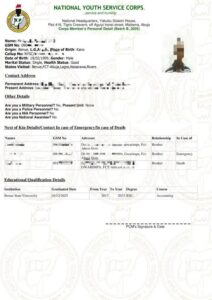
NYSC Green Card Slip Sample: What Does It Look Like?
The NYSC Green Card is a document generated from your NYSC registration profile. It contains your registration and personal information, including your photograph and relevant academic details.
The exact layout may change when the portal is updated, so don’t panic if a sample you find online looks slightly different from yours.
What matters is that the document was generated from your own NYSC dashboard and that your details are correct.
What the Green Card Contains
The NYSC green card holds all the personal information you submitted during registration. When you print yours, you will see details like:
- Your full name and date of birth
- Your call-up number
- Course of study and institution
- Contact address and phone number
- Next-of-kin information
- Blood group and genotype
- Date of graduation (as provided by your school)
- Kit sizes such as shoes, shirts, and shorts
- Your passport photograph
Difference Between NYSC Green Card and Call-Up Letter
This is one of the common areas of confusion among PCMs.
Your Green Card and call-up letter are separate documents, and you should not treat them as the same thing.
| NYSC Green Card | NYSC Call-Up Letter |
|---|---|
| Generated from your registration profile | Issued after deployment |
| Contains your registration and personal details | Contains your deployment and reporting information |
| Used as part of your camp registration documents | Shows the state and camp where you are expected to report |
| Printed from the relevant dashboard option | Printed when the call-up letter becomes available, if you subscribed to online printing |
My advice: Prepare both documents when they become available. Do not wait until you are travelling to camp before checking whether you have printed them.
Is NYSC Green Card Compulsory for Camp?
Yes, the NYSC Green Card is one of the documents you need for camp registration. It is the acknowledgement slip generated after you complete your online registration. It contains your personal details, call-up number and next-of-kin information.
During camp registration, officials ask for it to confirm your registration before completing your documentation and issuing your NYSC kit.
Print the original in colour on A4 paper, and do not laminate it. Keep it flat and safe with your other camp documents.
How to Reprint NYSC Green Card on Portal
What if you have already printed your Green Card but misplaced it? Or perhaps the first copy got damaged?
Try these steps:
- Visit the NYSC portal.
- Log in using the email address and password connected to your registration.
- Open your dashboard.
- Look for the Green Card or relevant print-slip option.
- Open the document and download it again.
- Print another copy.
Keep the PDF on your phone or email after downloading it. This makes it easier to reprint if you lose the physical copy.
NYSC Green Card Not Showing on Dashboard: What Should I Do?
If your NYSC Green Card is not showing on your dashboard, do not panic immediately. It could be that your registration or payment is still being processed, or the portal is having issues because too many people are trying to access it.
Here are a few things you can check:
What to Do If Your NYSC Green Card Is Not Showing
1. Check if Your Call-Up Number Has Been Generated
Your Green Card will not be available until your call-up number has been generated and appears on your dashboard. So, if you cannot see your call-up number yet, you may have to wait a little longer.
2. Check Your Payment Status
Log in to your dashboard and confirm that your Remita payment was successful. If the status still shows Pending, click on it to see if you can re-query or validate the payment.
3. Give It Some Time
If you just completed your registration or made payment, give the portal some time to process it. You can wait for 24–72 hours and check again.
4. Try Another Browser or Device
Sometimes, the problem is just your browser. Log out, clear your browser cache and try again using Google Chrome on a laptop or desktop. If you are using your phone, switch on Desktop Site in your browser settings and reload the portal.
How to Correct Mistakes on NYSC Green Card
What if you notice that your name, date of birth, course of study or another detail is incorrect? The first thing to understand is that not all corrections follow the same process. The correction available to you depends on the type of error and the stage of your NYSC registration.
For example, the portal provides procedures for certain corrections, including date of birth and course of study.
If you notice an error:
- Identify exactly what is wrong.
- Check whether the relevant correction option is available on your dashboard.
- Follow the instructions for that particular correction.
- Provide supporting documents or verification details where required.
- Contact NYSC or your institution if the correction option is unavailable or the error cannot be resolved online.
Don’t edit the PDF yourself or ask a cyber cafe attendant to change the information manually. Your printed document should reflect the information in your NYSC record. It is better to resolve important errors before camp registration.
Frequently Asked Questions About NYSC Green Card
1. How do I print my NYSC Green Card?
Log in to the NYSC portal with your registration email and password. Open your dashboard, locate the Green Card or relevant print-slip option, download the document and print it on A4 paper.
2. Can I print my NYSC Green Card more than once?
If the document remains available on your dashboard, you can download and print another copy. You do not need to register again simply because you misplaced the first printout.
3. Can I print my NYSC Green Card in black and white?
A clear black-and-white printout may be readable, but colour printing is preferable if available because it makes your passport photograph easier to identify. Make sure all details are visible.
4. Is the NYSC Green Card the same as the call-up letter?
No. They are different documents. The Green Card contains registration information, while the call-up letter contains your deployment and reporting details.
5. Can I download my NYSC Green Card on my phone?
Yes. If your dashboard allows you to open the document, you can download the PDF to your phone. You can then print it at a cyber cafe or business centre.
6. What if I cannot find my NYSC Green Card after registration?
Confirm that you are using the correct account and check your registration status. If the document is still unavailable, try another browser or contact NYSC support.
7. What happens if there is a mistake on my Green Card?
Do not alter the PDF yourself. Check whether the relevant correction option is available on your dashboard. If it is not, contact NYSC or your institution for guidance.
8. Where can I print my NYSC Green Card?
You can print it at a cyber cafe, business centre, your school’s ICT centre or with a personal printer. Download the PDF from your own dashboard first.
9. Do I need to print my Green Card before going to camp?
You should prepare a physical copy as part of your camp documents. Do not wait until you arrive at camp to start looking for a way to access or print it.
10. What is the difference between NYSC Green Card and deployment letter?
The deployment letter is another name people sometimes use when referring to the call-up letter. The call-up letter tells you where you have been deployed for orientation, while the Green Card contains your registration details.
What Happens After Printing Your NYSC Green Card?
Once you have printed your Green Card, keep it together with your call-up letter, academic certificate or statement of result, medical certificate and other documents required for your category.
Your next task is to check your call-up letter when it becomes available, confirm your deployment state and camp address, and prepare for camp registration.











-
 NYSC Portal5 months ago
How to Do NYSC Monthly and Final Clearance for POP (2026 Guide)
-

 NYSC Senate List5 months ago
How to Check the NYSC Senate List 2026: Complete Guide
-

 NYSC Call Up Letter5 months ago
How to Check Your NYSC Call Up Number on the Portal 2026
-

 NYSC Portal5 months ago
200+ NYSC POP Congratulations Messages, Prayers & Wishes
-

 NYSC Portal5 months ago
Get NERD Clearance for NYSC Mobilization in 24 Hours Here
-
JAMB5 months ago
How to Check JAMB Matriculation List for NYSC Mobilization (2026)
-
 NYSC Portal5 months ago
NYSC Portal Login Dashboard 2026 Nigeria for Batch A, B & C
-

 NYSC Camp5 months ago
After NYSC Camp: What Next? Complete PPA Guide for Corps Members